Search This Blog

Showing posts with label Lync. Show all posts

Friday, 4 October 2013

Updating the Lync 2010 Address Book

Artical Taken from Jeff Shertz's Blogs
http://blog.schertz.name/2010/09/updating-the-lync-2010-address-book/

The overall process is basically the same as what Office Communications Server does (covered in this past article), but with added flexibility of easily customizing some of the timing of the different events.  The entire process happens over time based on a number of intervals, and by default looks like this:
  1. Changes performed on Active Directory objects are automatically synchronized by the LS User Replicator once every 60 seconds.  These changes are written into the back-end SQL database for the pool as well as the rtcab database which is used by Address Book Web Query service for the Lync 2010 Mobile client.
  2. Once every 24 hours (1:30AM local server time) the LS Address Book Server will execute a synchronization pass which pulls the most recent information stored in the SQL rtc database and writes those changes into the address book files.
  3. On a randomized schedule the Lync client and Lync Phone Edition clients download any updated .lsabs and .dabs files from the Lync Server’s share to update the client’s local GalContacs.db cache file.
    Just as with OCS there are many scenarios when waiting a ‘day or so’ to see changes appear in the contact list are less than ideal, so the manual steps have been outlined in detail in this article.

Understanding the Process

The first two items on the list above are both server-side processes are are controlled individually by separate Set and Update cmdlets.  Since PowerShell cmdlets are now used for any and all configuration this means that separate command-line tools like lcscmd.exe or abserver.exe are no longer used in Lync Server.  The ‘abserver.exe –RegenUR’ command has been replaced by Update-CsUserDatabase and the ‘abserver.exe –SyncNow’ command has been replaced by Update-CsAddressBook.
    Let us first look at the User Replicator configuration, which is the process which synchronizes data between Active Directory and the Lync SQL databases.
  • Execute the Get-CsUserReplicatorConfiguration cmdlet.
PS C:\> Get-CsUserReplicatorConfiguration
Identity                  : Global
ADDomainNamingContextList : {}
ReplicationCycleInterval  : 00:01:00
The ReplicationCycleInterval value indicates the default behavior of Lync Server to search Active Directory for any changes every minute. This interval is 1 minute by default and can be customized to any value between 1 second and 24 hours.
The second half of the server-side process is controlled by the Address Book Service which pulls information from the SQL database and writes the changes to the address book files.
  • Execute the Get-CsAddressBookConfiguration cmdlet.
PS C:\> Get-CsAddressBookConfiguration

Identity                   : Global
RunTimeOfDay               : 1:30 AM KeepDuration               : 30
SynchronizePollingInterval : 00:05:00 MaxDeltaFileSizePercentage : 20
UseNormalizationRules      : True
IgnoreGenericRules         : False
EnableFileGeneration       : True
Noteworthy here are the SynchronizePollingInterval and RunTimeofDay settings.  The default RunTimeofDay value of 1:30 AM is the same setting that OCS used and is still indicative of the one time per day that Lync Server automatically updates the address book files automatically.
The SynchronizePollingInterval is how often the abserver.exe process checks for a pending synchronization event.  Basically when the Update-CsAddressBook cmdlet is run then a ‘synchronize now‘ event is marked and the update is not actually run immediately.  The event itself happens the next time abserver looks to see if a sync event has been triggered.  This polling interval is 5 minutes by default and can be customized to any value between 5 seconds and 3 hours.

Update Servers

Because Step #1 in the process happens by default every minute then any recent changes in AD should already be imported into the SQL database.  If this is not the case or for some reason normal replication is failing then a manual process can be used to toss out the entire copy of AD information in the SQL database’s address book store and regenerate a completely new copy.  To rebuild Lync’s copy of the AD data simply use the Update-CsUserDatabase cmdlet.  Be aware that is stuff is more process intensive than the automatic delta synchronization.  This step should not be necessary under normal circumstances.
In the time it took to read the previous paragraph Lync Server should have synchronized and outstanding changes in Active Directory and Step #2 can be manually processed.
  • Execute Update-CsAddressBook to trigger the Lync Server to synchronize current Active Directory information in the SQL database into the downloadable client and device address book files. (The -verbose switch was used in the example below to display the informational text; it is not required when running the cmdlet.)

image
  • After 5 minutes check the Lync Server event log on the server for a group of LS Address Book Server event reporting the results of the update command.

image
  • The contents of the four LS Address Book Server informational events show the triggered update and the results. The number of OC delta files written” shows that 40 new contacts were created, reflecting the new user accounts previously added into Active Directory and enabled for Lync Server.
Event ID:      21005
Description:
Synchronization pass started.
Event ID:      21010
Description:
Synchronization pass completed successfully. Address Book web service backend data partition = RtcAb1
Event ID:      21056
Description:
Synchronization Pass Summary.
Sync pass completed with 11 contacts processed
Number of separate AD partitions: 1
Number of valid contacts: 11
Number of empty contacts: 0
Number of invalid contacts: 0
Number of cached photos deleted: 0
Number of stale OC files deleted: 0
Number of OC full files written: 1 with 11 total contacts
Number of OC delta files written: 8 with a total of 40 new/updated contacts and 0 deleted contacts. Number of OC bytes written: 10,072 compressed to 7,134 bytes on disk.
Number of stale device files deleted: 0
Number of device full files written: 1 with 0 total contacts
Number of device delta files written: 11 with a total of 0 new/updated contacts and 0 deleted contacts.
Number of device bytes written: 1,657 compressed to 1,248 bytes on disk.

Event ID:      21004
Description:
Next synchronization pass will start at:
9/24/2010 1:30:00 AM

Update Clients

Just as Office Communicator has done since a later R2 hotfix, Lync also will not immediately download changes to the Address Book files when first launched, but instead wait for a random interval of time between 1 and 60 minutes.  To trigger an immediate download two steps must be taken on the client workstation.  The first step only needs to be performed once per workstation, while the second would be done each time a forced update is desired.
  • First, execute the following command from the Windows Command Prompt run as an administrator (or manually add the GalDownloadInitialDelay registry key).  Setting this value to 0 will force Lync to immediately download the address book instead of randomly selecting a time to check the server.
reg add HKLM\Software\Policies\Microsoft\Communicator /v GalDownloadInitialDelay /t REG_DWORD /d 0 /f
Take note that the there is another difference here between the Lync and Communicator clients.  For standard 32-bit operating systems the registry path below is the same regardless of the client versions (OC 2007 R2 with July 2009 update or Lync 2010 RC) but previously 64-bit operating systems running the 32-bit only OC 2007 R2 client had to have the setting created under the Wow6432Node policies key.
  • Second, exit the Lync client and manually delete the GalContacts.db and GalContacts.db.idx files from the user’s profile directory. If the .db file still exists during startup of the client then Lync may still wait for that random interval between 0 and 60 minutes before checking for changes on the server’s address book files.  By deleting the file the Lync client must download an entire new copy, forcing it to pick up any changes.
On Windows XP workstations:
%userprofile%\Local Settings\Application Data\Microsoft\Communicator\sip_<username@domain>\
On Windows Vista or Windows 7 workstations:
%userprofile%\AppData\Local\Microsoft\Communicator\sip_<username@domain>\
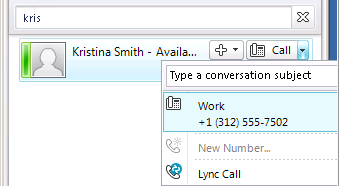
  • Restart the Lync client and search for any of the recently changed information, for example the Telephone Number added to this AD user account now appears for the Lync contact.
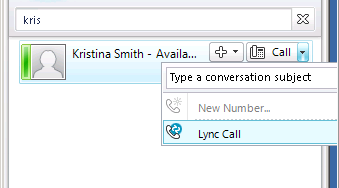
image     image

Monday, 1 July 2013

Disable a user on Lync 2010

Disable-CsUser -Identity "Ken Myer"
 
 
This removes the user from Lync  

Tuesday, 20 November 2012

Matt Landis: Lync 2010 Training Resources List

Matt Landis: http://windowspbx.blogspot.co.uk/

http://windowspbx.blogspot.co.uk/2012/11/lync-2010-training-resources-list.html?utm_source=dlvr.it&utm_medium=twitter&utm_campaign=Feed:+MattLandisWindowsPbxUcReport+(Matt+Landis+Windows+PBX+%26amp;+UC+Report)


-Lync 2010 Attendant Training: http://www.microsoft.com/en-us/download/details.aspx?id=11472

-Outlook Voice Access/VoiceMail Reference Sheet (choose your languague even!):http://www.microsoft.com/en-us/download/details.aspx?id=20772

-PowerPoint Lync Training: http://www.microsoft.com/en-us/download/details.aspx?id=16547

-How To Video Training for each individual thing:http://office.microsoft.com/client/helpcategory.aspx?CategoryID=CL101833114&lcid=1033&NS=COMM14&Version=14

-Lync Adoption/Training Kit: http://lync.microsoft.com/adoption-and-training-kit/Pages/default.aspx

Configuring Reverse Proxy for Lync Server 2010 Mobility

http://blogs.technet.com/b/nexthop/archive/2012/11/19/configuring-reverse-proxy-for-lync-server-2010-mobility.aspx?utm_source=dlvr.it&utm_medium=twitter


Monday, 19 November 2012

Exclude Contact Folders from Exchange Mailbox in Lync

set-csclientPolicy -identity global -ExcludedContactFolders “Contacts;Suggested Contacts;frequent contacts”

Thursday, 15 November 2012

Lync Client Log Files

To turn on Logging
In the Communicator Title bar, click the Menu button, point to Tools, and then click Options.
Click the General tab, and then under Options, select the Logging options that you want to enable.

To locate the Communicator log file
In Windows Explorer, navigate to the <user profile>\Tracing folder. If you have enabled the Turn on Logging in Communicator option, you will see a communicator-uccp-log.uccplog file in the folder. If you are already signed in, you will need to sign out and then sign back in before the log file is created.

Also lync 2011 for mac log files are located: 


/Users/username/Library/Logs

Windows Live contacts that use a custom (EASI) domain

Symptoms
Consider the following scenario. You add Windows Live, MSN, or Windows Live Hotmail contacts to a Microsoft Lync Online user’s contact list. To do this, you use an E-mail As Sign-In (EASI) ID domain instead of a default @live.com address. In this scenario, you may experience the following issues:

Presence is unavailable, and the status is displayed as Presence Unknown.
Instant messages cannot be delivered or sent.

In the following sections, the following domains are used as placeholder examples:

Lync Online domain: contoso.com
Windows Live EASI domain: live-contoso.com


Cause
Public Internet Connectivity (PIC) in Lync Online supports Windows Live, MSN, and Windows Live Hotmail. However, when you add PIC contacts that use a Windows Live EASI domain such as live-contoso.com, Lync Online cannot resolve the IM Federation server based on the domain suffix.

If you directly add a PIC contact by using the contact’s EASI ID (for example, you use JoeAndreshak.@live-contoso.com), a specific Service (SRV) record is required in the Domain Name System (DNS) for live-contoso.com. This SRV record is required because the Lync Online server uses the domain suffix in the user's EASI ID. In this example, the Lync Online server tries to use the live-contoso.com domain suffix. The Lync Online server tries to identify an SRV record that points to the Instant Messaging (IM) federation server for the domain.

Resolution
To resolve this issue, use one of the following methods.

Method 1

Use the EASI Windows Live ID together with PIC when you add a user to your Lync 2010 contact list. To do this, you must make a change in the search field. A Lync Online user who wants to add the EASI Windows Live ID, such as <username>@live-contoso.com, must add an address that resembles the following to the search field:

JoeAndreshak(live-contoso.com)@msn.com

This method allows for a quick resolution if Lync Online users are only going to add a few PIC contacts.

Method 2

The Lync Online administrator must add the correct SRV Federation records to the DNS host for the Lync Online environment. The Windows Live EASI domain owner must also add an SRV record that resembles the following example to the DNS host for the Windows Live EASI environment:
_sipfederationtls._tcp.live-contoso.com
port = 5061
server hostname = federation.messenger.msn.com
Administrators can let Lync Online users add contacts without having to use the special format in "Method 1" in the "Resolution" section. To do this, administrators must add an SRV Federation record that Lync Online users can access to add contacts to the Windows Live EASI domain.

Lync 2010 Deleting ALL Contacts by User - Using SQL

1. Using the Microsoft SQL Management Studio tools connect LyncServerName\RTC using an account that has full CSAdministrator rights.

2. When connected, under databases right click "RTC" and select "New Query".

3. In the new query entry fieldtype the following:

DECLARE @RC int
DECLARE @_Owner nvarchar(4000)
EXECUTE @RC = [rtc].[dbo].[ImpDeleteContactGroups2] "user@sipdomain.co.uk"
GO

4. Under the Execute command detailed above change the users SIP address to be the desired one. To run this for multiple people at once, add more Execute lines for each person and then click Execute in the tool bar to run the script

5. Once the query has run, log into the Lync 2010 client as the user(s) and ensure their contacts list is now blank.

Adium MAC and SIPE Addon for LYNC

http://john.whelans.net/archives/991

The setup is simple:

Make sure you’re running Adium 1.5
Download this plugin: http://db.tt/2yx5wYNt
Install the plugin and restart Adium
Add the new account using Office Communicator for the protocol

It doesn’t do everything (no video chat or screen sharing) – but it’s a huge step in the right direction.

[Update 5/4/12]: One thing Adium doesn’t do (but lync does) is set your status based off your calendar. I’ve addressed this via some AppleScript, as detailed here.

[Update 5/16/12]: The latest beta of Adium (1.5.1b1) uses a different version of libpurple, so the plugin doesn’t work. A quick workaround is to run the following commands in Terminal:

cd /Applications/Adium.app/Contents/Frameworks/libpurple.framework/Versions
ln -s 0.10.5 0.10.0

Plugin is also available on V:\IT Share\IM Clients\MAC\Adium + SIPE Plugin\

Pidgin on Linux with SIPE connect to Lync

http://home.dataforce.org.uk/2012/04/mi ... -on-linux/

Instructions for Ubuntu (using a precompiled deb I've uploaded):

sudo apt-add-repository ppa:pidgin-developers/ppa
sudo apt-get update
sudo apt-get install pidgin
wget http://www.myfileservice.net/pidgin-sip ... 2_i386.deb
sudo dpkg -i pidgin-sipe_1.13.1-2_i386.deb

Once this is done you can then open pidgin, and add an "Office Communicator" account, using teh following settings:

First tab (Basic)
Login: email address
Username: email address
Password: password

Second tab (Advanced)
Server/port: blank
Connection Type: Auto
User Agent: UCCAPI/4.0.7577.314 OC/4.0.7577.314
Auth Scheme: TLS-DSK

Untick Use single sign on, leave everything below it blank

Ignore the other 2 tabs

Lync 2010 Prepare for Support of Public IM Connectivity + Video to MSN

http://technet.microsoft.com/en-us/libr ... 98177.aspx

Supporting connectivity with public IM users in your organization requires that the appropriate licensing is in place and that the provisioning process for the public IM services that you want to support is complete. Provisioning can take up to thirty days, so allow sufficient time to complete the process prior to the date on which you want to implement support. For details about licensing requirements and how to complete the provisioning process, see the "Public IM Connectivity Provisioning Guide for Microsoft Lync Server, Office Communications Server, and Live Communications Server" at http://go.microsoft.com/fwlink/p/?LinkId=155970.

If you are implementing audio/video (A/V) federation with Windows Live Messenger, there are two parameters that you need to modify: the Microsoft Lync Server 2010 encryption level and the EnablePublicCloudAccess policy. By default, the encryption level is set to Required. You must change this setting to Supported. The EnablePublicCloudAccess policy is set to false, this needs to be set to true You can do this from the Lync Server Management Shell.

Start the Lync Server Management Shell: Click Start, click All Programs, click Microsoft Lync Server 2010, and then click Lync Server Management Shell.

From the command prompt, type the following commands:

Set-CsMediaConfiguration -EncryptionLevel SupportEncryption

Set-CsExternalAccessPolicy Global -EnablePublicCloudAccess $true -EnablePublicCloudAudioVideoAccess $true

Lync Server 2010 Deployment - blog.schertz.

Wicked guide to Lync 2010 setup: http://blog.schertz.name/

Jeff Schertz Bog:
http://blog.schertz.name/2010/09/lync2010rc-deployment-part1/
http://blog.schertz.name/2010/09/lync2010rc-deployment-part2/
http://blog.schertz.name/2010/09/lync2010rc-deployment-part3/
http://blog.schertz.name/2010/09/lync2010rc-deployment-part4/